Settings –> your AirPods
Listening Mode = Transparency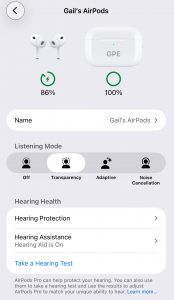
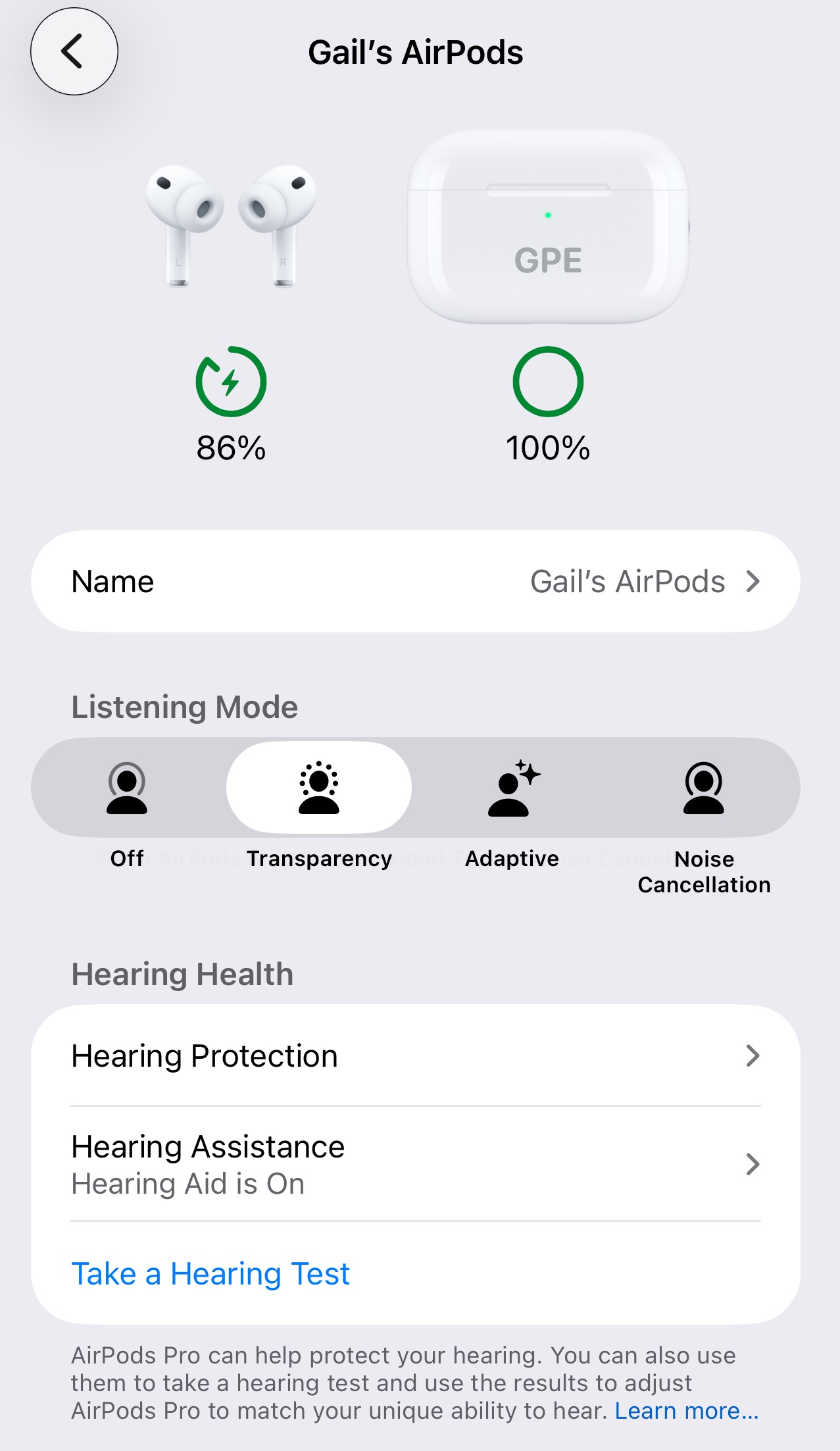
Hearing Health
- Hearing Protection
- Loud Sound Reduction = ON
- Hearing Assistance
- Hearing Aid = ON (Yes, take the Hearing Test)
- Adjustments
- Amplification = about 10% (trying softer rather than louder)
- Balance = 50% Right ear vs. Left ear
- Tone = 25% on the Darker side (again, trying to reduce the metallic loud impulse sounds)
- Ambient Noise Reduction = 50% (When you’re in a noisy atmosphere, you can go to the Settings menu on your iPhone and change this as needed.
- Conversation Boost = ON
- Own Voice Amplification = 25% (Keep this low so you don’t feel like you’re shouting.)
Call Controls
- The factory settings are fine here
Camera Control
- Turn this OFF
Audio
- Personalized Volume = ON
- Conversation Awareness = ON
- Adaptive Audio = 50% (Adjust as needed for individual environments.)
Automatic Ear Detection
- Turn this ON.
AirPods Translation
- Though this is in beta testing, the AirPods can translate spoken French, Spanish, and other languages into English straight to your ears. I haven’t tested this feature yet.
Head Gestures
- Turn this OFF
Then, go back to the SETTINGS menu
Settings –> Sound & Haptics
- Volume Limit
- Maximum = 50% (Default = 60%)
- Reduce Loud Sounds = ON
- Headphone Safety
- Reduce Loud Audio = ON
- Max audio = 80 decibels (“as loud as a noisy restaurant”)
Cleaning
- Every so often look at the silicone tips. If you see any earwax, take a Q-tip and gently clean it.
Conclusion:
Hope this helps. Most of these suggestions should work regardless of which “generation” of AirPods you have. It’s always important to safeguard our hearing!
INFORMATION ABOUT GEEK FOR HIRE, INC.
Chris Eddy of Geek For Hire, Inc. has provided computer service to families and small businesses with Macs and PCs for the past twenty-plus years. You can find more on our website or give us a call. Geek For Hire, Inc. provides on-site computer repair service (Tier 3 support) to the Denver / Boulder / Front Range area and remote PC and Mac service throughout North America.
We’ve been using Amazon Prime for the past few years. We like the free and fast shipping. With Prime, we have access to online streaming, too. You can get a free 30-day trial by clicking on this link: Try Amazon Prime 30-Day Free Trial. As an Amazon Associate, we earn from qualifying purchases.
More Tips Here:
- Should I keep Windows 10?
- Data Storage in the Cloud
- Summer of Scams
- Road Trips & Summer Travel Apps
- Secure Messaging Apps
- Printer Ink Subscription
- STEM Toys for kids
- Holiday Phishing Scams
